When AMOpportunities sets up your manager account, you receive an email inviting you to activate it. Activation takes about five minutes: you create a password, verify your email with a six-digit code, and sign in.
Important: Once you click Register, keep the page open until you have entered your verification code. Refreshing or closing the page before then will lock the activation, and you will need to contact AMO support to finish.
Before you start
Have these ready:
- Access to the email inbox where you received your invitation
- A mobile phone number that can receive text messages (not an office line). AMO uses it for sign-in security codes.
- A password that meets the requirements: at least eight characters, including one uppercase letter, one lowercase letter, one number and one special character
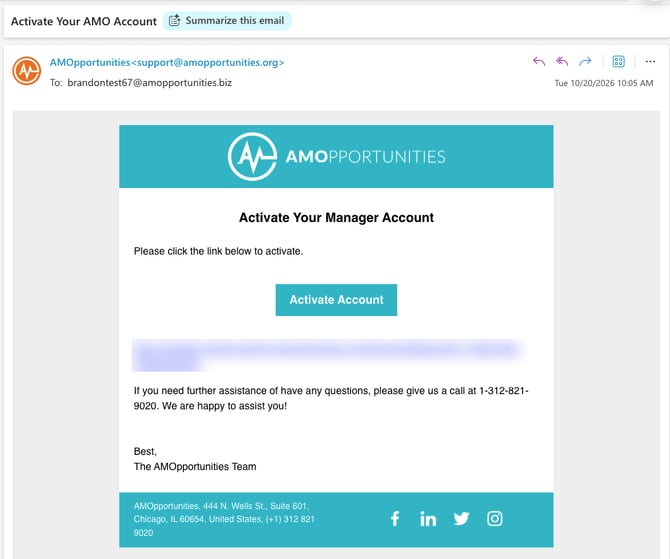
Step 1: Open your activation email
Look for an email from support@amopportunities.org with the subject Activate Your AMO Account. Click Activate Account to open the sign-up page.
If you don't see the email, check your spam, junk or quarantine folder.
Step 2: Create your login credentials
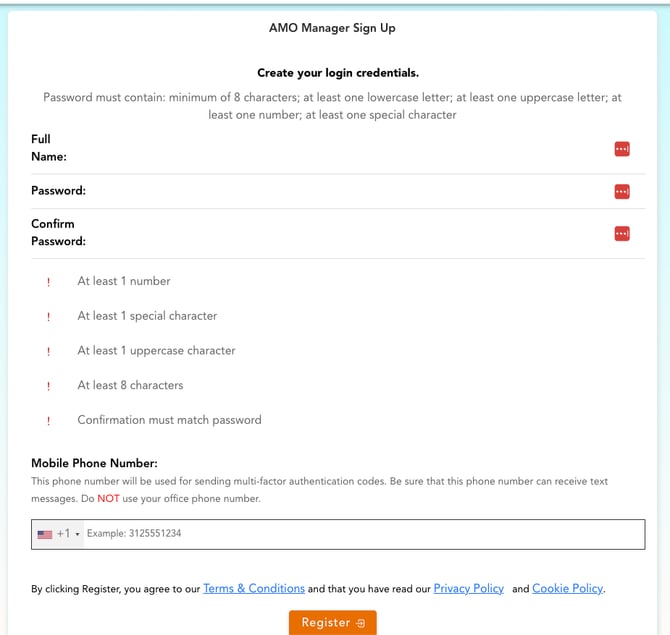
On the AMO Manager Sign Up page, fill in:
- Full Name
- Password, then the same password again in Confirm Password. Each requirement in the checklist turns green when it's met.
- Mobile Phone Number. Choose your country code, then enter a number that can receive texts.
When every item in the checklist is green, click Register.
Step 3: Verify your email
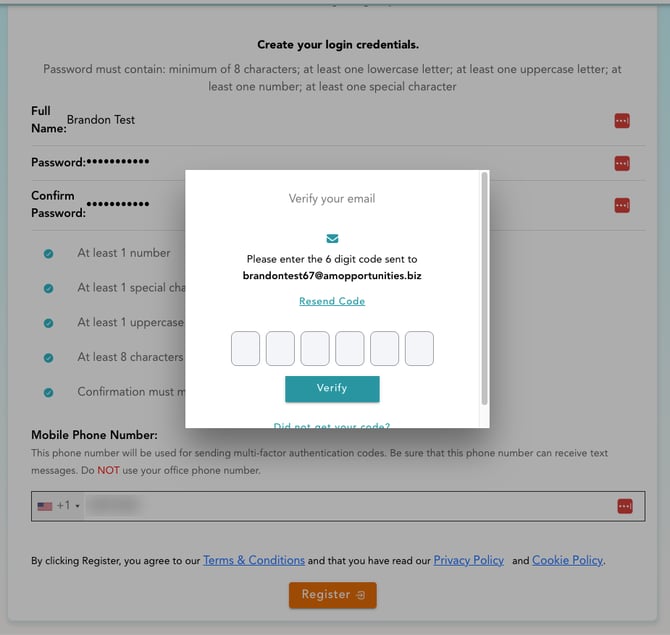
After you click Register, a Verify your email window opens and asks for a six-digit code. Leave this window open.
In your inbox, open the email from donotreply@amopportunities.org with the subject Your AMO confirmation code.
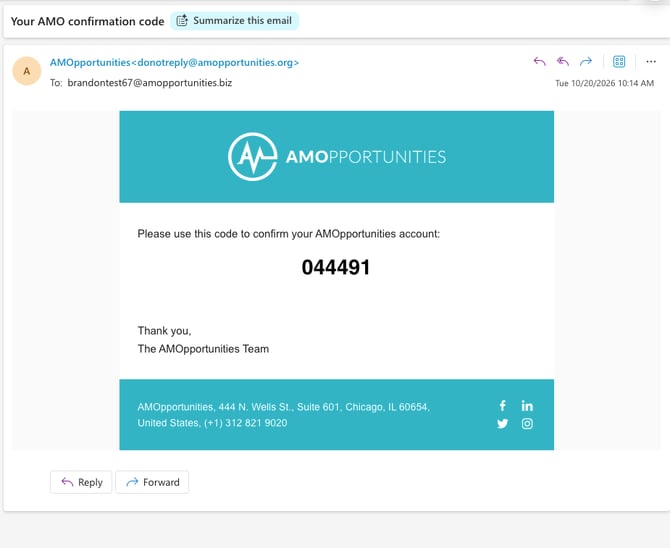
Enter the six digits in the Verify your email window and click Verify.
If the code hasn't arrived after a few minutes, check your spam folder, then click Resend Code in the window. Always use the code from the most recent email.
Step 4: Sign in for the first time
- Go to the AMO admin sign-in page and enter your email address and the password you created.
- AMO sends a security code to your email. Enter it to finish signing in.
You're all set. From now on, sign in the same way.
Troubleshooting
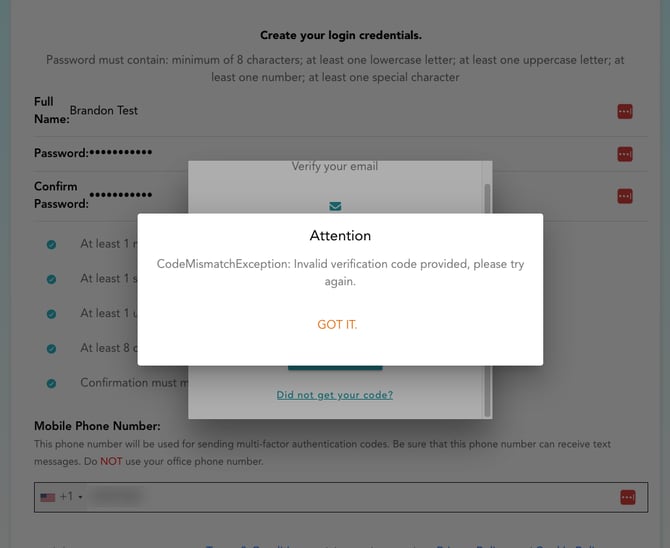
"Invalid verification code provided, please try again"
The code you entered doesn't match the latest one sent. Click Got it, find the most recent Your AMO confirmation code email, and enter that code. Do not refresh the page.
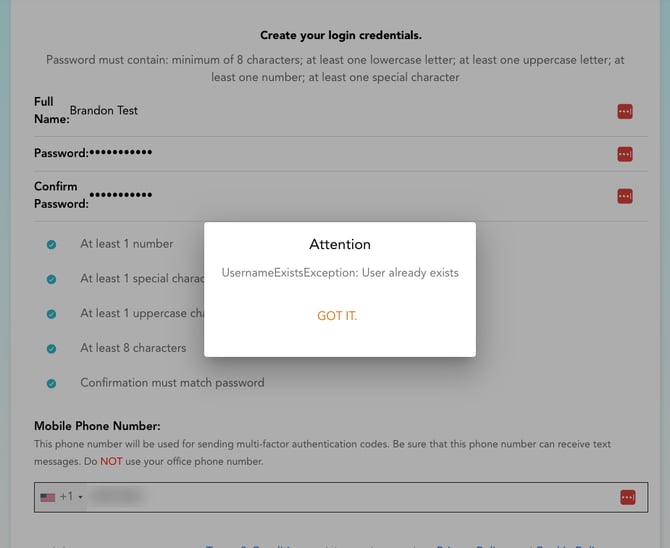
"User already exists"
This appears if the page was refreshed or closed after you clicked Register but before you entered your code. Your account was partly created, so you can't register again, and password reset won't work yet.
What to do: contact AMO support (below). We'll finish activating your account, and you can then sign in as described in Step 4.
I never received the activation email or the confirmation code
Check your spam, junk and quarantine folders. Some organizations filter outside email, so you may need to ask your IT team to allow mail from amopportunities.org. If it still doesn't arrive, contact AMO support.
My password won't be accepted
Make sure every item in the checklist under the password fields is green: at least eight characters, one uppercase letter, one lowercase letter, one number and one special character. Confirm Password must match exactly.
Need help?
Contact the AMOpportunities team at support@amopportunities.org or call 1-312-821-9020. Include your name, the email address your invitation was sent to, your institution, and a screenshot of any error you see.